How to Connect Audionic Earbuds to Your Device

Wireless earbuds have quickly become an essential part of our daily lives, offering convenience, portability, and the freedom to enjoy music, calls, or gaming without the hassle of tangled wires. Audionic, one of Pakistan’s leading audio brands, has earned a strong reputation for creating earbuds that combine quality sound with user-friendly features. However, for many first-time users, pairing wireless earbuds with their device can feel confusing. The good news is that once you understand the process, it takes only a few seconds.
This guide will walk you through the step-by-step process of connecting Audionic earbuds to your smartphone, laptop, or other devices, along with some troubleshooting tips if things don’t work as expected.
Step 1: Charge Your Earbuds Before First Use
Before you attempt to connect your Audionic earbuds, make sure they are fully charged. Place them in their charging case and connect the case to a power source using the provided cable. Charging ensures a smooth pairing process and prevents your earbuds from turning off mid-setup.
Step 2: Take the Earbuds Out of the Case
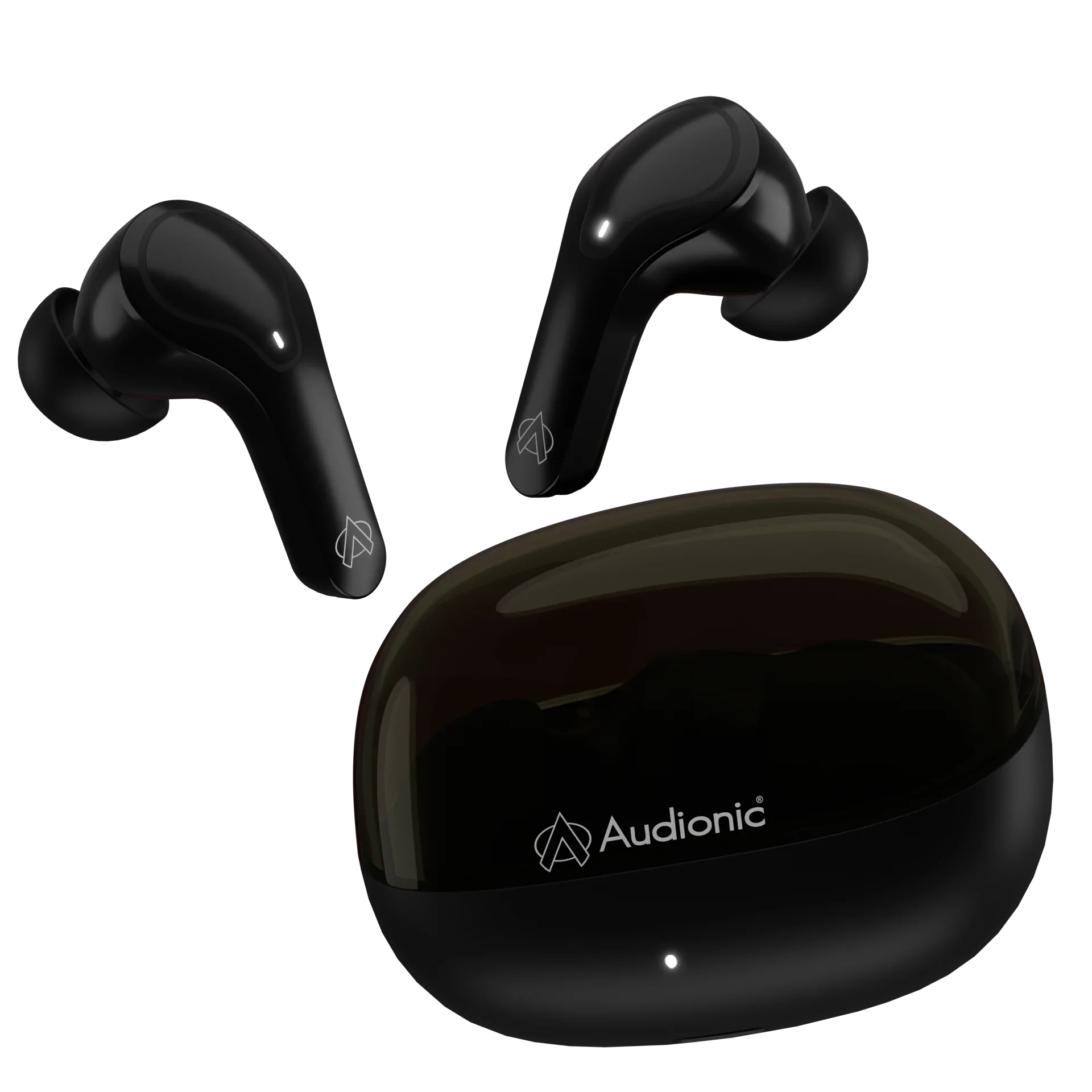
Most Audionic earbuds automatically enter pairing mode as soon as you take them out of the charging case. You may notice blinking LED lights on the earbuds, usually red and blue, which indicate that they are ready to pair.
If the earbuds don’t enter pairing mode automatically, you can manually activate it by pressing and holding the multifunction button (or touch area) on each earbud for a few seconds until the LED starts flashing.
Step 3: Enable Bluetooth on Your Device
On your smartphone, tablet, or laptop, go to the Bluetooth settings and make sure Bluetooth is turned on. On most Android devices, you can swipe down from the top of the screen and tap the Bluetooth icon. On iPhones, go to Settings > Bluetooth and toggle it on. On laptops, open Bluetooth settings from the system menu or control panel.
Step 4: Select Your Audionic Earbuds from the List
Once Bluetooth is on, your device will begin scanning for nearby accessories. Look for the name of your Audionic earbuds—often labeled as “Airbud,” “Airbud Pro,” or the specific model you purchased. Tap on the name, and your device will attempt to connect.
When the connection is successful, you will hear a voice prompt from the earbuds or see a “Connected” notification on your screen.
Step 5: Test the Connection
Play a song or a video to confirm that the earbuds are working properly. You should hear clear audio through both earbuds. If your earbuds feature touch controls, test them by pausing, skipping, or adjusting volume to ensure they are functioning.
Connecting to Laptops and PCs
For laptops and PCs, the process is similar but may take an extra step depending on your operating system:
- Windows: Go to Settings > Devices > Bluetooth & other devices. Click Add Bluetooth or other device, then select your earbuds from the list.
- Mac: Open System Preferences > Bluetooth and select your earbuds from the list to connect.
Troubleshooting Tips
Sometimes, earbuds don’t connect smoothly on the first attempt. Here are a few quick fixes:
- If earbuds don’t appear in the Bluetooth list: Turn Bluetooth off and back on, or restart your device.
- If only one earbud works: Place both earbuds back in the charging case, then remove them again to reset the connection.
- If pairing fails: Forget the device in your Bluetooth settings, then reconnect from scratch.
- If the earbuds keep disconnecting: Ensure they are fully charged, and keep your device within 10 meters for stable connectivity.
Advanced Features Through the Audionic App
Some Audionic earbuds come with app-based controls. By downloading the official app, you can customize touch controls, check battery levels, or adjust sound profiles to match your preferences. While not all models support this feature, it’s worth checking if your pair offers software integration.
Final Thoughts
Connecting Audionic earbuds to your device is a quick and simple process once you get the hang of it. By ensuring they are charged, activating pairing mode, and enabling Bluetooth on your device, you can enjoy seamless wireless audio within minutes. For users in Pakistan and beyond, Audionic continues to make high-quality, affordable earbuds accessible—combining strong sound performance with easy usability.
So the next time you unbox a new pair of Audionic earbuds, follow these steps, and you’ll be set to enjoy your music, calls, or gaming sessions without a single cable in sight.